 ServiceXG Basics
Session pane
The session pane tabs provide additional information related to the open record. For example, if you have a member open in a Member session, the correspondence, images, and eFlow jobs are related to that specific member.
The session pane is completely moveable and adjustable.
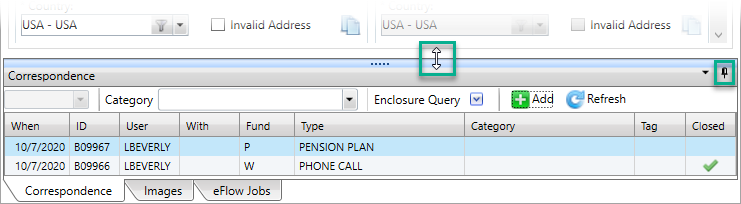
- You can adjust the size of the session pane at the top of the window. When the cursor turns into a double-sided arrow, drag the edge of the window up or down to the required size.
- You can change the behavior of the window via the menu arrow on the left of the window bar.
Docked—Makes the session pane part of your session workspace.Sliding—Contracts the session pane so it doesn't take up room in your workspace and the log tabs display at the bottom. You can point at the area or click a tab to expand it and then move your cursor away from the area or click outside the session pane to contract it.- The push pin icon toggles between the docked and sliding window options.
- Close any open and unmodified tabs by right-clicking the session tab and choosing to:
- Close this session
- Close all unmodified sessions
- Close all unmodified sessions except this one
Session manager
-
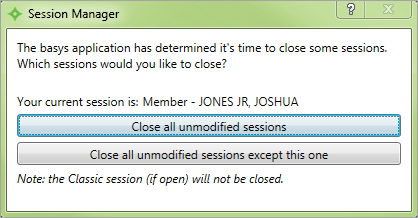
A window might display if the application is using too much memory. You have the choice of closing all unmodified sessions or all unmodified sessions except the current one.
- When ServiceXG sessions are automatically opened in claims processing, they also close automatically. If the session has no pending changes, it is closed automatically. If there are pending changes, you're prompted to save those changes.